Welcome to ConnectDesk
This guide is for the people who set up and run a ConnectDesk workspace: owners, admins and team leads. It walks through every screen you need, with real screenshots, and explains not just what each field does but why you would change it and what to put there.
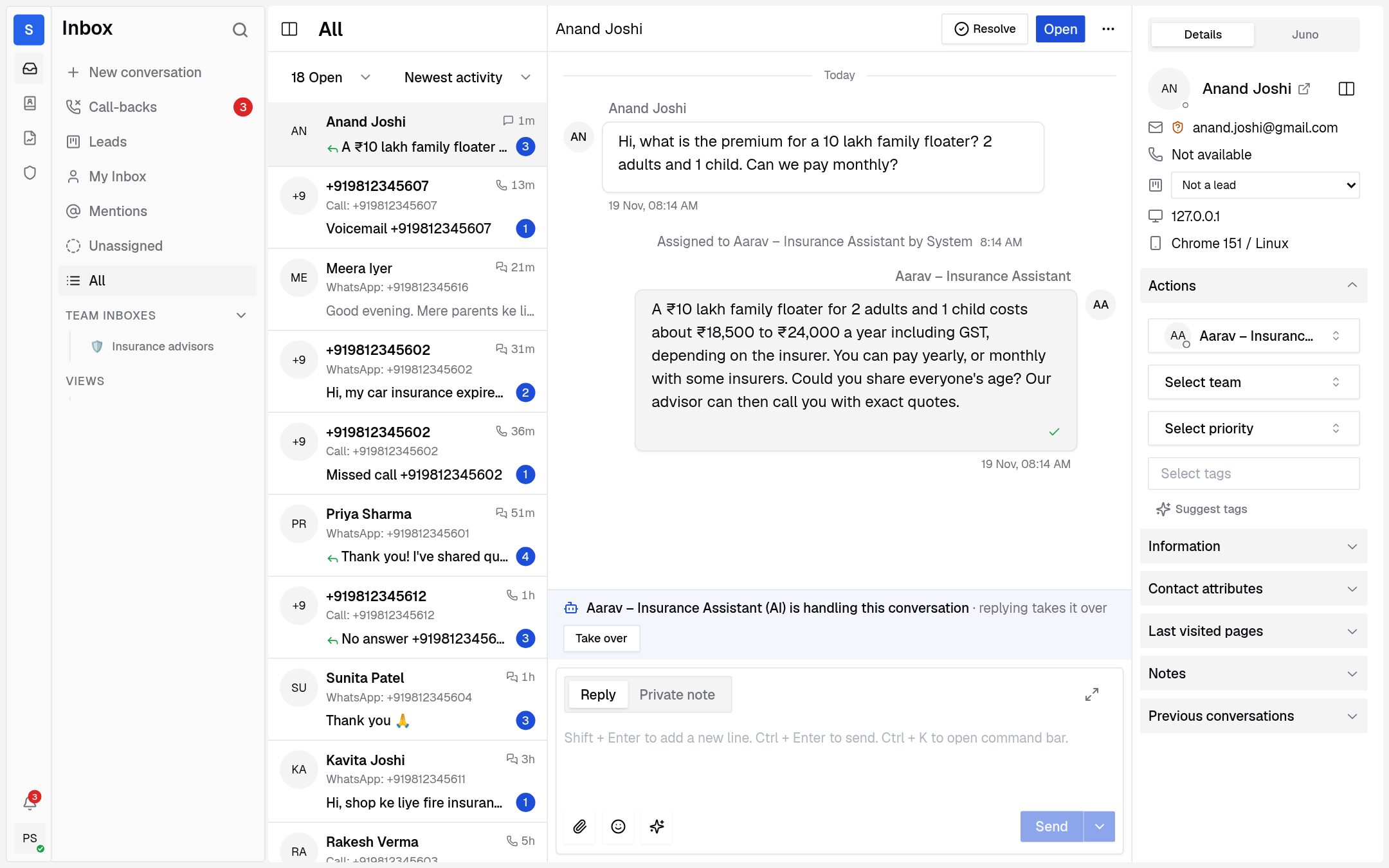 Your shared inbox. Here the AI assistant "Aarav" has answered a pricing question by itself; an agent can take over at any time.
What ConnectDesk does for you
- One inbox for every channel. Website chat, WhatsApp, email, Facebook Messenger, Instagram, Telegram and phone calls all arrive in the same list, so nobody has to watch five apps.
- An AI assistant that answers customers by itself from the information you give it, around the clock, and hands the chat to a person when it can't help.
- A copilot for your team, called Juno, that summarises conversations and drafts replies.
- Sales tools for businesses that sell over calls and WhatsApp: a business type with ready-made lead stages, a leads board, missed-call call-backs, call summaries and a daily WhatsApp report.
- Bookings: the AI assistant books, moves and cancels visits, demos and appointments in your free times, confirmed instantly or by your team, with WhatsApp reminders. Bookings are shared out among your staff, shown on a week calendar and synced with each person's Google Calendar. See Bookings.
- A public help center where customers find answers themselves.
- Reports on response times, SLAs, customer satisfaction and calls.
Quick start: the order to set things up
Most workspaces are fully running in an afternoon. Follow these steps in order; each links to the page that explains it.
| # | Step | Why it comes here | Page |
|---|---|---|---|
| 1 | Sign in, choose your business type and check General settings (name, language, time zone, business hours) | Your business type sets your lead stages and AI defaults; every other screen uses the time zone and business hours. | Getting started, Leads & pipeline, Workspace settings |
| 2 | Invite your team and put them in teams | Conversations need somewhere to go. | Your team |
| 3 | Connect your channels (website chat, WhatsApp, email…) | This is where customer messages come from. | Channels |
| 4 | Connect an AI provider | The assistant and Juno need a model to write with. | AI setup: providers |
| 5 | Build the knowledge base | The assistant only answers from what you write here. | Knowledge base |
| 6 | Create the AI assistant, test it and switch it on | Customers start getting instant answers. | Create your AI assistant |
| 7 | Add canned replies, tags and automations | Saves your team time on repeat work. | Conversation tools |
| 8 | Publish a help center (optional) | Customers help themselves, and the AI can read it too. | Help center |
| 9 | Set up booking types and turn on AI bookings (optional) | Lets the assistant book visits, demos and appointments by itself. | Bookings |
Short on time? Admin → Workspace → Leads & pipeline → Set up the AI assistant creates the contact fields, knowledge-base drafts and an assistant made for your business type (insurance, real estate, transport, healthcare, video management software, manufacturing or general) in one click. See Leads & pipeline.
How to read this guide
- Bold text is the exact label you see on screen, e.g. Save.
- Paths like Admin → AI → Assistants tell you where to click: the shield icon (Admin) in the far-left bar, then the AI group, then Assistants.
- Click any screenshot to see it full size.
- Use the search box at the top (press /) to jump to any field or button.
- The examples use an insurance advisory firm called Suraksha Insurance Advisors. Replace the names, prices and timings with your own.
Who can see what
What each person sees in ConnectDesk depends on their role. The built-in Admin role can open every setting in this guide; the Agent role answers conversations but can't change settings. You can make your own roles (for example "Team lead") — see Roles.
If a menu item from this guide is missing for you, either your role doesn't include it, or the feature isn't part of your plan. Ask your workspace owner, or contact ConnectDesk support.
Words you'll see
| Word | Meaning |
|---|---|
| Workspace | Your organisation's own copy of ConnectDesk, at an address like yourname.ws.conectdesk.app. Nobody outside it can see your data. |
| Inbox | One connected channel: a chat widget, a WhatsApp number, a mailbox, a phone line. |
| Conversation | One thread with one customer. It has a status (Open, Snoozed, Resolved…), an assignee and tags. |
| Agent | A person on your team who logs in to answer customers. |
| AI assistant | An AI "agent" that answers customers on its own and hands over to a person. |
| Knowledge base | The snippets and help articles the AI is allowed to answer from. |
| Juno | The AI copilot your agents chat with inside a conversation. |
| Snippet | One self-contained answer in the knowledge base, e.g. "Refund policy". |
| Private note | An internal message in a conversation that the customer never sees. |
| Macro | A saved reply and/or set of actions applied in one click. |
| SLA | A target time to reply or resolve, e.g. "reply to new enquiries within 30 minutes". |
| CSAT | A 1–5 satisfaction survey sent to customers after a conversation is resolved. |
| Booking type | A kind of appointment you offer, e.g. Home visit or Video demo, with its hours, duration and confirmation. See Bookings. |
| Lead stage | Where a lead is in your sales pipeline, e.g. New, Quote shared, Policy issued, Lost. Set by your business type. |