Leads & pipeline
Tools for any business that turns calls and WhatsApp enquiries into customers: your business type, lead stages, a daily WhatsApp report, AI for calls, and a one-click AI assistant setup made for your industry.
Where: Admin → Workspace → Leads & pipeline.
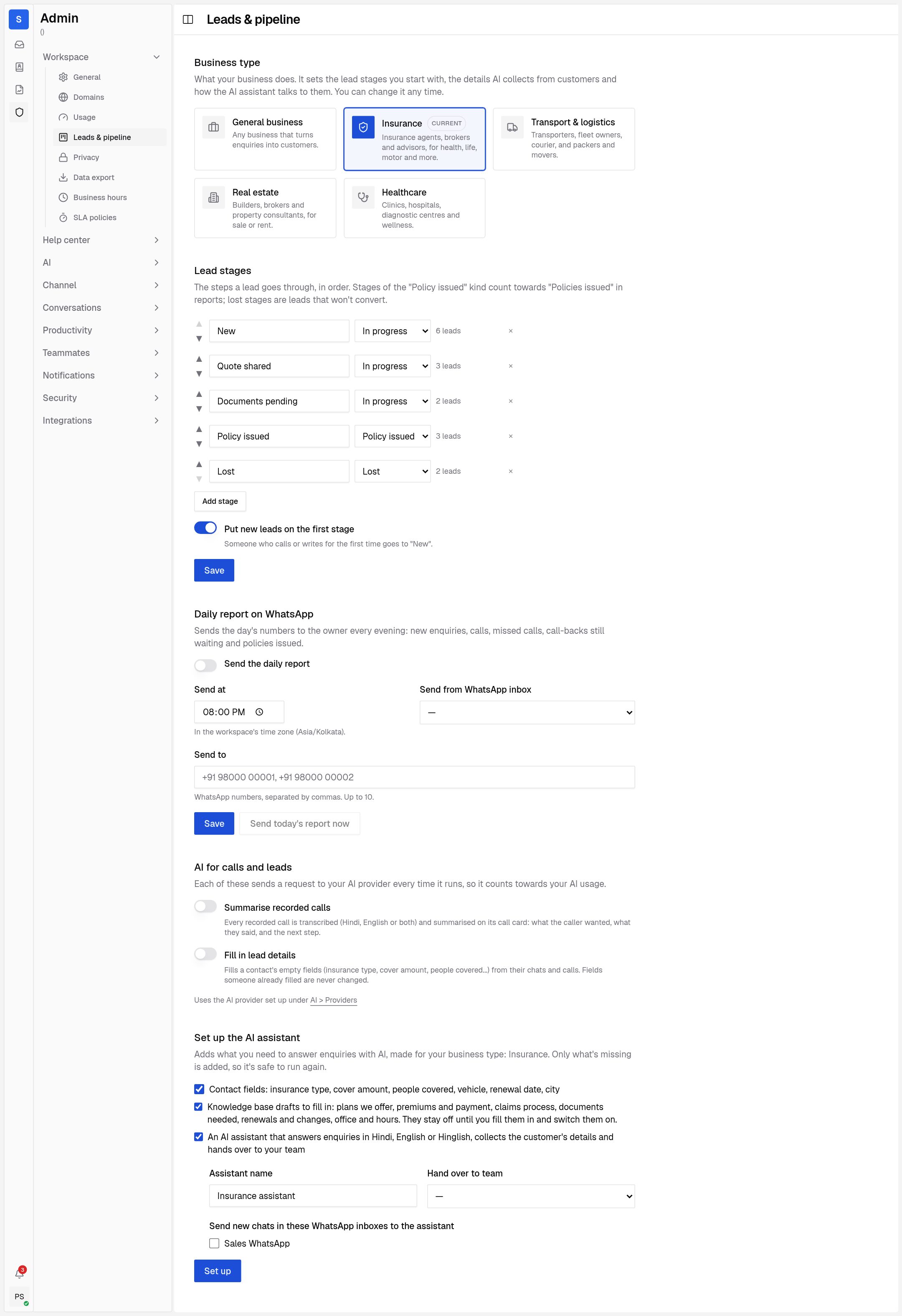
Business type
Tell ConnectDesk what your business does. It sets the lead stages you start with, the contact details the AI collects from customers, the cards on the Leads board and how the AI assistant talks to customers. You can change it any time.
| Business type | Who it's for | Lead stages | A won lead is counted as |
|---|---|---|---|
| General business | Any business that turns enquiries into customers. | New → Contacted → Qualified → Won / Lost |
Won (Deals won in reports) |
| Insurance | Insurance agents, brokers and advisors: health, life, motor and more. | New → Quote shared → Documents pending → Policy issued / Lost |
Policy issued (Policies issued) |
| Transport & logistics | Transporters, fleet owners, courier, packers and movers. | New → Quote shared → Negotiating → Booked / Lost |
Booked (Bookings) |
| Real estate | Builders, brokers and property consultants, for sale or rent. | New → Site visit booked → Negotiating → Booked / Lost |
Booked (Bookings) |
| Healthcare | Clinics, hospitals, diagnostic centres and wellness. | New → Appointment booked → Visited / Didn't visit |
Visited (Patient visits) |
| Video management software (VMS) | VMS and video surveillance software vendors and resellers selling to security integrators, retailers, warehouses and campuses. | New → Demo booked → Trial / POC → Quote sent → Won / Lost |
Won (Deals won) |
| Manufacturing | Manufacturers and B2B suppliers getting enquiries, RFQs and sales orders on WhatsApp and calls. | New → Quote sent → Negotiating → Order confirmed / Lost |
Order confirmed (Sales orders) |
Each business type also comes with ready-made booking types, added when you pick it if the workspace has none yet. They start switched off: set their business hours, then turn them on. For example, an Online demo and an On-site demo / site survey for VMS, a Factory visit and a Video call with sales for manufacturing, a Site visit for real estate, an Appointment for healthcare, a Home survey for transport and an Advice call for insurance. The manufacturing assistant collects RFQ details (product, quantity, specs, delivery location, required-by date) and never confirms a price, a minimum-order exception, a lead time or an order — your sales team does.
- Pick your business type. If nothing fits, choose General business.
- Tick Also switch the lead stages to: … if you want that industry's stages. Stages that still have leads are kept, so nobody drops off the board.
- Click Save business type.
The setup checklist's first step, Choose your business type, brings you here.
Lead stages
The steps a lead goes through, in order. They're the columns on the Leads board your team uses.
- Each stage has a name and a kind: In progress, won (named for your business type, e.g. Policy issued or Booked; counts towards Policies issued or Bookings in reports) or Lost (won't convert).
- Use ▲ / ▼ to reorder, Add stage to add one (up to 12), × to remove one (only once it has no leads).
- Put new leads on the first stage: everyone who calls or writes for the first time lands on the first stage automatically.
- You need at least one In progress and one won stage. Click Save.
Want the contact moved along automatically when a visit or demo is booked? Set a Lead stage on the booking type.
A typical set for an insurance advisor: New → Quote shared → Documents pending → Policy issued / Lost. For a property broker: New → Site visit booked → Negotiating → Booked / Lost.
Daily report on WhatsApp
Sends the owner the day's numbers every evening: new enquiries, calls, missed calls, call-backs still waiting, won leads (in your business type's words, e.g. Policies issued or Bookings) and bookings: bookings made, bookings held and booking requests still to confirm.
- Turn on Send the daily report and choose Send at (in your workspace time zone).
- Pick the WhatsApp inbox to send from and an approved Template — or click Create the suggested template and wait for Meta to approve it.
- Send to: up to 10 WhatsApp numbers, separated by commas.
- Save, then Send today's report now to test.
The template's body values are filled in this order: {{1}} date, {{2}} new enquiries, {{3}} calls received, {{4}} missed calls, {{5}} call-backs still waiting, {{6}} won, {{7}} bookings made, {{8}} bookings held, {{9}} booking requests waiting. A template you had approved earlier with fewer values keeps working — it gets the first ones. To include bookings, submit an updated template with 9 values (Create the suggested template does this) and pick it once Meta approves it.
The same numbers, bookings included, show under Today so far on the reports overview.
AI for calls and leads
Each uses your AI provider and counts towards your AI usage. They save as soon as you switch them.
- Summarise recorded calls: every recorded call is transcribed (Hindi, English or both) and summarised on its call card — what the caller wanted, what was said and the next step.
- Fill in lead details: fills a contact's empty fields from their chats and calls, e.g. insurance type, cover amount and renewal date, or property type, budget and location. Fields someone already filled are never changed.
One-click AI assistant setup
Set up the AI assistant adds what you need to answer enquiries with AI, made for your business type. Only what's missing is added, so it's safe to run again.
| Tick | What it adds |
|---|---|
| Contact fields | The details worth asking for in your industry. Insurance: insurance type, cover amount, people covered, vehicle, renewal date, city. Real estate: property type, budget, preferred location, buy or rent, move-in. Transport: pickup, drop, load, vehicle type, pickup date, company. Healthcare: health concern, department or doctor, patient's age, preferred time, city. Video management software: company, number of cameras, number of sites, current VMS, camera / NVR brand, timeline. Manufacturing: company, product or part, quantity, specs, delivery location, required-by date. General: requirement, budget, company, city. |
| Knowledge base drafts | Snippets to fill in, e.g. for insurance: plans we offer, premiums and payment, claims process, documents needed, renewals and changes, office and hours. They stay off until you fill them in and switch them on. |
| An AI assistant | The Insurance assistant, Property assistant, Booking assistant, Front desk assistant or Sales assistant. It answers in Hindi, English or Hinglish, collects the customer's details and hands over to your team. Set the Assistant name, Hand over to team, and which WhatsApp inboxes send new chats to it. |
Click Set up. Then:
- Click Fill them in to open the draft snippets. Replace every placeholder with your real plans, prices and timings, and turn each one Enabled. See how to write snippets.
- Click Open it to review the assistant, then use its Test tab. See Create your AI assistant.
The Leads board and Call-backs
Your team works leads from the inbox menu:
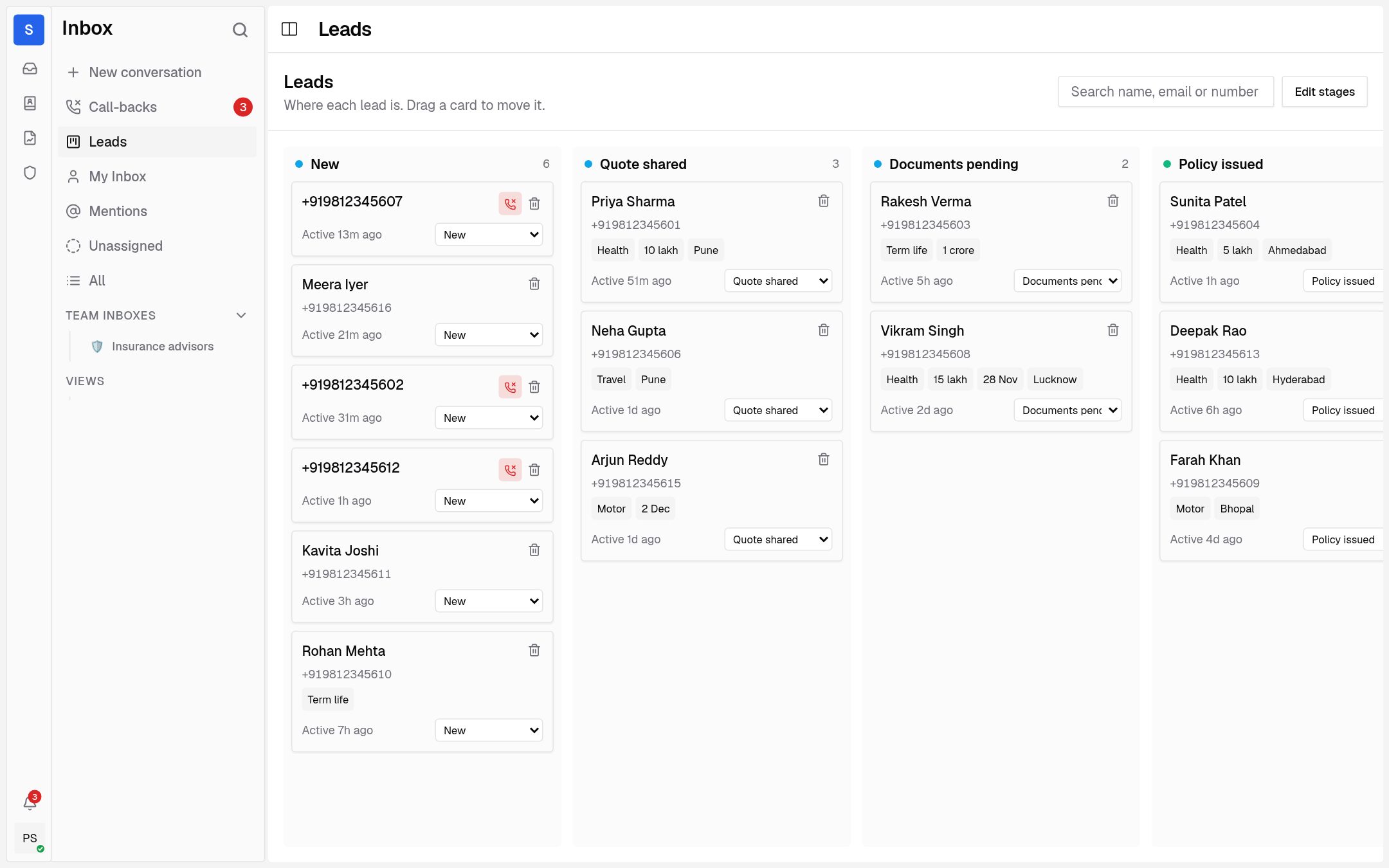 Leads: one column per stage. Each card shows your industry's key details, e.g. insurance type, cover amount and renewal date, and the contact's next booking (marked "to confirm" while it's a request). Drag a card to move the lead.
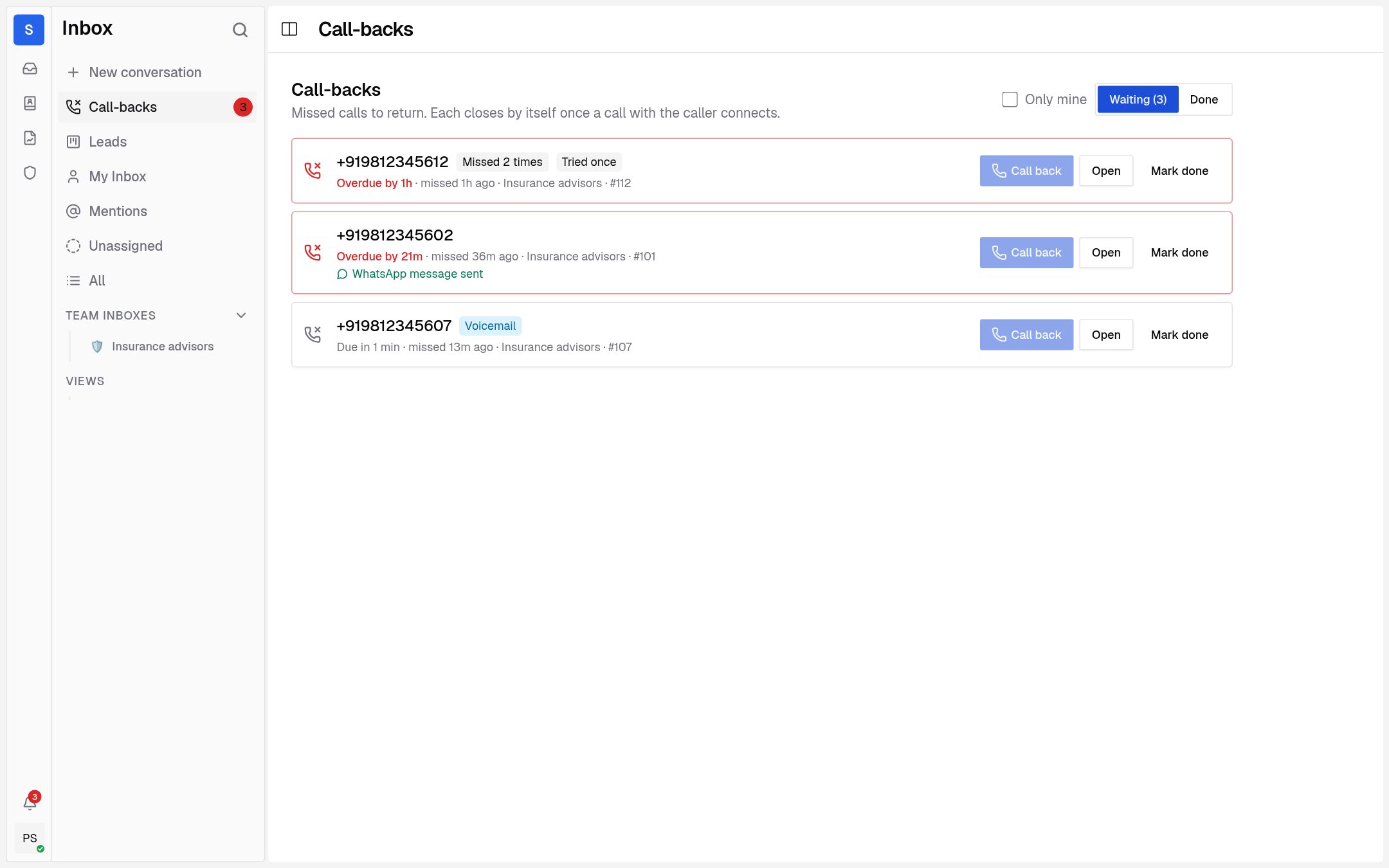 Call-backs: missed calls waiting to be returned. Each closes by itself when a call with that person connects.